LightBlog
Affichage des articles dont le libellé est xda-developers. Afficher tous les articles

lundi 3 janvier 2022

Honor’s first foldable smartphone is launching next week

2022 is going to be a pivotal year for the growth of foldable phones as many new players are set to join the party. Last month we saw OPPO dabble into the foldable sphere with the launch of the Find N. Now one more player will soon be bringing its own take on the foldable form factor. The Chinese smartphone maker Honor has been teasing its upcoming Magic V smartphone for the past few weeks. Today the company officially revealed the launch date for its first foldable phone.

In a press release today, Honor confirmed it will unveil the Magic V on January 10. The launch event will take place in China at 11:30 AM UTC. While Honor didn’t detail anything about the hardware, the accompanying teaser shared by the company gives us a glimpse of the phone’s design. As you can see in the image below, the Honor Magic V will sport a triple camera setup on the back nestled inside a rectangular module. We can also see the outer display with a centered hole-punch cutout for the selfie camera.

An image showing a smartphone with text that reads "Honor Magic V"

As seen in last month’s teaser, the Honor Magic V will sport an inward folding design similar to the Galaxy Z Fold 3 and feature flat edges. The phone will most likely be powered by Qualcomm’s latest and greatest Snapdragon 8 Gen 1 chipset. Similar to previous Honor smartphones, the Honor Magic V will be limited to the Chinese market, at least initially. The company hasn’t confirmed whether the phone will make its way to international markets. The Honor Magic V will go head to head against the likes of the OPPO Find N, Galaxy Z Fold 3, and Huawei Mate X2.

Not much is known about the Honor Magic V’s internal hardware at this point. But with the official launch just a week away, we won’t have to wait long to learn more about Honor’s first foldable smartphone.

Are you excited about Honor’s first foldable smartphone? Let us know in the comments below. 

The post Honor’s first foldable smartphone is launching next week appeared first on xda-developers.


from xda-developers https://ift.tt/3eL8TKE
via IFTTT

OnePlus 9RT and Buds Z2 are coming to India on January 14

The OnePlus 9RT and OnePlus Buds Z2 were first revealed all the way back in October, but the products still aren’t available everywhere. OnePlus is only selling the 9RT in China, while the Buds Z2 have arrived in a handful of countries (including the United States and much of Europe). Now it seems both products will be arriving in India soon, according to a new teaser from OnePlus.

OnePlus has revealed on its official forums that the OnePlus 9RT 5G and OnePlus Buds Z2 will launch in India on January 14, accompanied by a livestream at 5PM IST on the company’s Indian YouTube channel. Yes, this is an announcement of an announcement — OnePlus didn’t specify if the devices will actually go on sale on January 14. Earlier rumors indicated OnePlus was aiming for a December release for the 9RT and Buds Z2 in India.

Gear up for the new year with one Geared For Greatness. OnePlus Launch Event Winter Edition: 5PM IST, January 14

OnePlus talked a bit about the phone, saying “the OnePlus 9RT 5G, is an extension of OnePlus 9R, and carries on the legacy of powerful flagships geared to propel you ahead of the game. On top of the impeccably robust performance, OnePlus 9RT 5G also offers uncompromising features in design, imaging performance, and display quality. Redefining the conventional performance offered by entry-level flagships, this power-packed offering delivers an enhanced experience for avid gamers and power-users alike.”

The forum post didn’t specify the differences between the India and China versions of the OnePlus 9RT, so we’ll likely have to wait until January 14 for that information. Even if the hardware is the same, OnePlus will presumably use OxygenOS 12 instead of the ColorOS software on the Chinese version (even if there’s not much of a difference between them now).

OnePlus has not yet released the kernel source code for any variation of the OnePlus 9RT. However, you can download the included wallpapers.

The post OnePlus 9RT and Buds Z2 are coming to India on January 14 appeared first on xda-developers.


from xda-developers https://ift.tt/3pT694s
via IFTTT

Samsung Galaxy S9 and Galaxy Note 9 can now run Android 12, unofficially

The Samsung Galaxy S9, S9 Plus, and the Galaxy Note 9 were the company’s 2018 flagship smartphones, and the three devices are still poised to receive security updates. While the Korean OEM has committed to deliver up to 3 generations of Android OS updates, the policy only applies to flagship models from the Galaxy S10 onward. As a result, both the Galaxy S9 and Galaxy Note 9 are officially stuck with Android 10. Thankfully, these devices still have quite the aftermarket development support on our forums, and a developer has now released the first set of official builds of the ArrowOS custom ROM based on Android 12 for them.

XDA Forums: Samsung Galaxy S9 ||| Samsung Galaxy S9 Plus ||| Samsung Galaxy Note 9

The release comes to us courtesy of XDA Senior Member king1990 (as well as the entire ArrowOS team), and it offers users of these fan-favorite devices a chance to try out the latest Android version available right now. The working feature list for the ROM includes most of the key functionalities like Wi-Fi, Bluetooth, RIL, audio and video playback, and more. But because of its early nature, a few key aspects like device encryption and Wi-Fi Casting are disabled for now. There are also some known incompatibility issues between AOSP and Samsung’s proprietary implementation of advanced LTE services, because of which VoLTE and Wi-Fi calling are not usable at all.

But on the bright side, it is vanilla Android 12 experience on the Samsung Galaxy S9 and Galaxy Note 9! You can enjoy the revamped UI and the new Privacy Dashboard, and try out the fancy new widgets. And you can do all that now, provided you have the Exynos-powered global or Korean variants. Notably, the Snapdragon models of the Galaxy S9/Note 9 are not compatible with this release.

Many would agree that an Android 12 custom ROM is not exactly something one would recommend using as a daily driver in its current state. That, however, does not take away from the fact that this is the only way you can enjoy the sweetest Android dessert right now on the Samsung flagships of 2018.

Download ArrowOS 12 based on Android 12: Samsung Galaxy S9 and S9 Plus || Samsung Galaxy Note 9

The post Samsung Galaxy S9 and Galaxy Note 9 can now run Android 12, unofficially appeared first on xda-developers.


from xda-developers https://ift.tt/32YDrWv
via IFTTT

First 10 things to do with a new Android Phone

Bought yourself a shiny new Android phone over the holidays? Or got one as a gift this Christmas? You might need some help familiarizing yourself with the interface or a few tips that will help you make the best out of your new purchase. That’s exactly what you’re going to find in this article! Whether you switched from the dark side and are new to Android or just upgrading from an older model, we’ll tell you the first 10 things you should do with a new Android phone to ensure you have the best experience. So, grab your phone, sit back, and follow these simple steps to customize the device to its full potential!

Navigate this article:

  1. Sign in with your Google Account
  2. Restore a Backup or Transfer Data from your older phone
  3. Customize your Homescreen with Launchers, Icons Packs, Widgets, and Wallpapers
  4. Uninstall Bloatware from your Carrier or OEM
  5. Change Navigation Style
  6. Customize Quick Toggles
  7. Change Animation Speed to 0.5X
  8. Enable Dark Mode
  9. Setup Digital Wellbeing
  10. Link your Android Phone to a Windows PC

1. Sign in with your Google Account

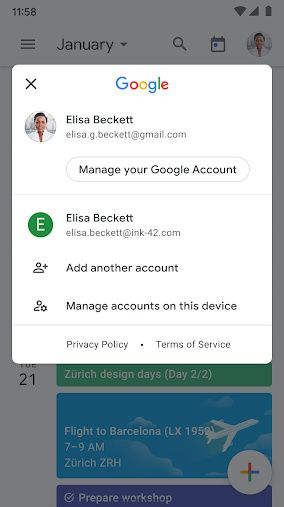
Since Android is a part of Google, a lot of services on an Android phone rely on a Google account. You need a Google account to install apps, use Google’s services like Gmail and YouTube, and sync your data to the cloud. When you switch on your brand new Android phone for the first time, you will be greeted with the setup process. Once you’ve entered basic details like your Wi-Fi password, you will be prompted to log in with your Google Account on the device. If you already have one and you were using it on your older device, it’s best to use sign-in with the same ID. This way, you will be able to sync your data from your old device to your new one and even restore a backup from the cloud.

Google account

If you don’t have a Google Account, you will be given an option to create one during setup. While you can skip this step and create one later, it’s highly recommended that you create one at the time of setup since pretty much everything you do after this step on your phone would require a Google account. You can also sign into multiple accounts if you have separate IDs for personal and work use. If you use other email providers like Yahoo or Microsoft, you can also sign into those email IDs during the setup process.

Multiple Google accounts

Your Gmail ID will be used to sync your data across devices which can be useful. When you store a contact on your Android phone, for example, it will be synced to your Google Account which can be accessed from anywhere on any device. If you also have a smartwatch or an Android TV, signing in with the same Google ID on all devices will give you a seamless experience.

2. Restore a Backup or Transfer Data from your older phone

If you’re switching from an older device, be it Android or an iPhone, you will be given an option to transfer all your existing data from your older phone to your new Android phone. This includes all your apps, photos, videos, files, contacts, messages, etc. This is a great way to ensure all your data is intact even on the new phone and you won’t really lose out on any important photos or contacts.

Copying data from an Android phone

If you don’t have your old phone anymore, Google even gives you an option to restore a backup from the cloud. If you had auto-backup enabled on your old phone, Google automatically backs up data from your phone like the pre-installed apps, call log, device settings, etc., and syncs it with your Google Account. You can restore this backup on your new Android phone by signing in with the same Google Account as your old phone and then choosing the device from which you want to restore the backup.

Phone Clone apps

Several OEMs that provide their own custom UIs on phones even have their own proprietary data transfer software that you can use to bring your data from your old phone to the new one. The instructions differ from phone to phone but they will be listed on the screen during the setup process and are easy to follow.

3. Customize your Homescreen with Launchers, Icons Packs, Widgets, and Wallpapers

Android is known for its customization options so it’s only fair that you make use of it to its fullest. If you’re someone who likes to change the way the software on your phone looks to suit your style, the best way to start doing so is by customizing your homescreen. This is the screen that you see as soon as you unlock your device. It’s the screen you see before you launch any app, so it’s got to look good.

Whicons

The simplest way to change the look of your homescreen is to use a nice wallpaper. There are several wallpaper apps on the Play Store that you can use to download beautiful wallpapers for your homescreen. Pro tip: If your phone has an OLED display, try to pick a wallpaper with a black background since it will look great and also help you save some additional battery.

Once you’ve changed the wallpaper, you might want to get a matching icon pack with it. The key to a good-looking homescreen is a nice wallpaper accompanied by an icon pack that complements it. If you have a dark wallpaper, a white icon pack will create a great level of contrast and give you a monochrome look.

Nova launcher's app drawer Nova launcher simple home screen Nova launcher customization options

Another way to customize your homescreen while also adding extra functionality is to use widgets. Widgets can display useful data like the Weather, upcoming calendar events, reminders, etc., and also add to the overall aesthetic of your homescreen. There are several apps like KWGT and UCCW that even let you create custom widgets and change the way they look to suit the other elements on your homescreen.

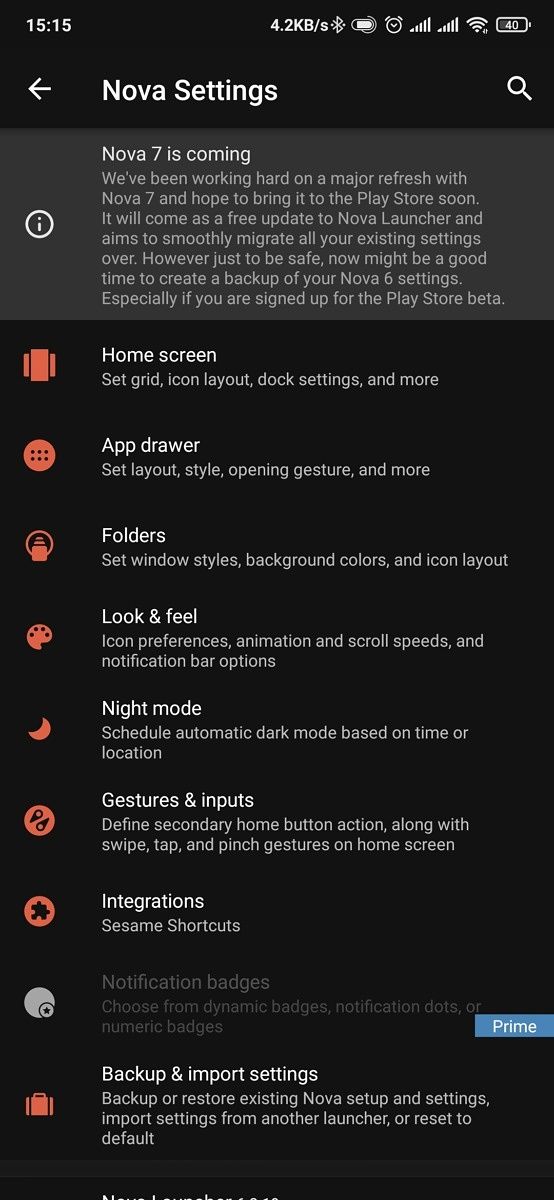
If you want to go one step further, you can use a custom launcher to tweak more minute aspects of your homescreen like the app grid and the app drawer. You can change the background for folders, add swipe gestures to perform certain functions, and even modify the transition effects while swiping between homescreens. The best way to familiarize yourself with all the features is to download these apps and try them out for yourself and then decide which one suits your needs. There are literally unlimited permutations and combinations that you can try on your homescreen so go wild!

KWGT Kustom Widget Maker (Free+, Google Play) →

UCCW - Ultimate custom widget (Free+, Google Play) →

4. Uninstall Bloatware from your Carrier or OEM

Depending on which phone you buy and where you buy it from, your new Android phone might come with some pre-installed apps that may not be useful to you. These apps are generally referred to as bloatware. This is because they stay on your phone and occupy storage while utilizing resources that can be allocated to apps that you actually use. Hence, it’s a good idea to uninstall all the apps that you don’t use on your phone.

Bloatware on Android

Some pre-installed apps can be uninstalled by default while some that are carrier or OEM-specific may not have the uninstall option. You can delete those apps too by following our how to uninstall carrier and OEM bloatware guide. In general, it’s recommended to install and keep only the apps that you need and use on your phone. If there’s an app that you don’t use at all, you should uninstall it.

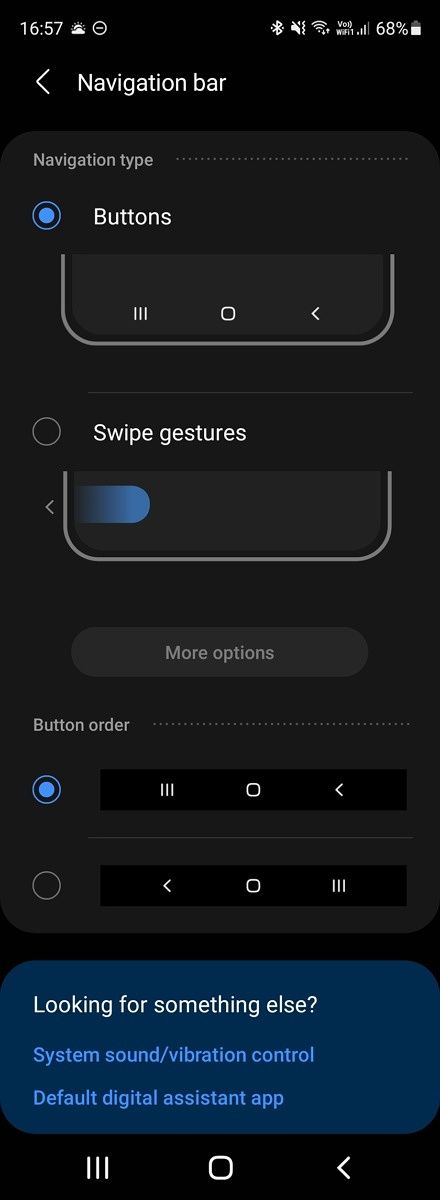
Up until Android 9 Pie, Android used a three-button navigation bar to go back, home, and to access recent apps. With evolving phone designs and emphasis on edge-to-edge displays, though, the default navigation mechanism on most Android phones nowadays is gestures. While gestures are convenient, some people may still prefer the older button-style navigation bar at the bottom of the screen. Or if you’re coming from an iPhone, you may prefer gestures over the buttons. Either way, you can try out both and then decide which one you want to keep.

Android navigation change navigation bar settings navigation gestures navigation bar

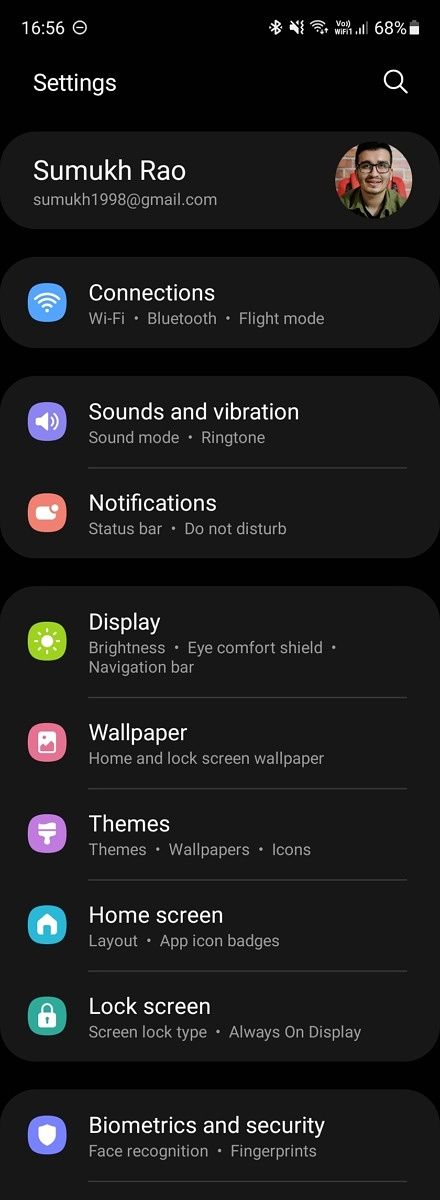
Head over to the Settings app on your phone and tap on the search bar at the top. Now, type in navigation and you should see results along the lines of System navigation and Gestures or something similar. The setting may vary based on the skin of Android you’re using, but the name should be more or less similar on all devices. From here, you can try out both the navigation bar and the gestures to see which one you find more convenient.

6. Customize Quick Toggles

When you drag down the notification bar on Android, you would be able to see a few toggles at the top of the screen for Wi-Fi, Bluetooth, Airplane Mode, etc. These are referred to as quick toggles. Dragging down once more should expand this region and give you more toggles for various other settings and features. This is the area that can be quickly accessed whenever you want to change some setting regardless of what app you are in. Hence, customizing it to show the toggles you use most often will make your experience more convenient.

Quick toggles

To do this, swipe down on the notification bar and then swipe down on it once again to reveal all the quick toggles. Here, you will find multiple toggles arranged in random order. At the top right corner of this screen, you will find an Edit option next to the Settings button or a set of three dots which you can tap on to find the Edit Buttons/Layout option.

customize quick toggles edit quick settings

Tapping on it will let you rearrange your toggles in the order you want them. The first few toggles are what appear on the first row when you drag the notification bar down once. These should ideally be the toggles you use most often. You can set the first few toggles for Wi-Fi, Bluetooth, Mobile Data, Flashlight, Auto-rotate, and Battery Saver. These are the ones I use most often which is why I like having them at the top.

You can also swipe through multiple pages in the quick settings panel and add extra toggles. For example, I’ve added a toggle to trigger Shazam that can detect what song is playing in the background, and a toggle to turn on and turn off all my smart lights. You can choose from the list of available toggles and add whichever ones you find useful to the quick settings panel.

7. Change Animation Speed to 0.5X

Smartphone processors have gotten really fast in recent times so no matter which phone you buy, you should be able to get decent performance out of it at least while doing basic tasks. That, coupled with a high refresh rate display like a 90Hz or 120Hz panel means you’re going to get a smooth experience while using the phone. However, there’s a quick hack that can make your experience even smoother while using any Android device. It’s a basic trick that has been around for years now but it’s still very much effective.

Every phone has animations across the UI. Whether you’re opening an app or switching between multiple apps, there are animations in between to make the experience smooth. However, those animations can make your phone feel slightly slower. This trick will let you speed up the animations, in turn resulting in a snappy experience.

Animation speeds 0.5x

All you have to do is head over to Settings > About Phone and tap 7 times on Build Number. This will enable Developer Options on your Android phone. Now, head over to Developer Options and scroll down till you find these three options: Window animation scale, Transition animation scale, and Animator duration scale.

Tap on all of these options and change the Animation scale to 0.5X. Now, reboot your device and you should instantly see animations being faster and your phone should feel more snappy and quick. Note that this doesn’t actually speed up your phone, but since the animations end quicker now, it does trick your brain into believing your phone is now “faster”.

8. Enable Dark Mode

A lot of modern phones nowadays come with OLED displays. One of the advantages of an OLED display is the deep blacks and excellent contrast levels while viewing content on the display. The way it does this is by turning off pixels entirely in the region where something black is being displayed. As a result, it also ends up saving battery life since the pixels are turned off and there’s no power required to run that part of the display. This is also the reason we recommended using a dark wallpaper above if you have a phone with an OLED display.

dark mode on Android phone

This is also the reason you should enable Dark Mode on your Android phone. There are two main advantages of doing this. If your phone has an OLED display, you will end up getting a little extra battery life. It may not be significant, but even a 10% increase should be helpful. Secondly, dark mode is easier on your eyes, especially at night. A bright, white background can be quite harsh to look at especially if you use your phone a lot in the dark.

To enable Dark Mode on your Android phone, head over to Settings > Display > Theme > Dark. The exact setting may vary depending on which device you have, but you should find it under the Display section within the Settings app.

9. Setup Digital Wellbeing

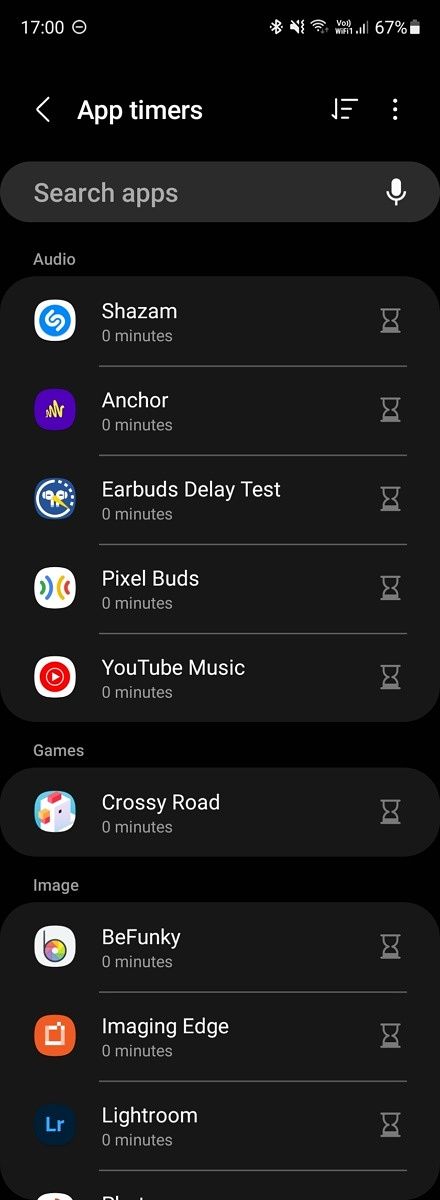
Digital Wellbeing is a great way to limit your phone usage by setting time limits for certain apps and checking how many times you’ve used your phone and to do what. If you’re addicted to social media apps or games on your device, this is a great way to stay away from your phone and set restrictions.

Digital wellbeing screen time limits app timers

Open the Settings app on your phone and scroll down to Digital Wellbeing. Here, you should find detailed information about how you’ve used your phone and for what duration. You can set a goal for your screen time, set app timers after which an app can’t be opened, and even add focus modes and a bedtime mode to keep yourself away from your phone before going to bed. A digital detox is quite essential from time to time and Digital Wellbeing lets you do exactly that.

10. Link your Android Phone to a Windows PC

One of the biggest advantages of using an iPhone with a Mac is just how well everything integrates together. You can accept calls on your iPhone via your Mac, respond to iMessages directly from the Mac, and even copy something on your iPhone and paste it on the Mac. Well, you would be surprised to know that you can achieve something similar using the Your Phone app on your Android phone and on a Windows PC.

Your Phone app

All you have to do is download the Your Phone Companion app from the Play Store and follow the on-screen instructions to link your device with your Windows PC. Once done, you will be able to receive your phone’s notifications on your PC, copy files easily, have a common clipboard, etc. If you have a Samsung phone, the integration with a PC is even better as you get more features.

Your Phone Companion - Link to Windows (Free, Google Play) →


So, what are you waiting for? Grab your brand new Android phone and get to work! Customize the device to make it your own and follow all the simple tricks to get the best out of your device. Which of these tips did you like the best? Let us know in the comments below.

If you have bought yourself a different device, check out our other tutorials:

The post First 10 things to do with a new Android Phone appeared first on xda-developers.


from xda-developers https://ift.tt/3eMR51C
via IFTTT

dimanche 2 janvier 2022

A developer got Android 12 booting on the legendary Samsung Galaxy S III

In recent days, we’ve informed you about a variety of official Android 12 updates. They all had one thing in common: Every update was delivered to devices that are currently supported by the respective OEM. But what happens with much older and unsupported smartphones? Do they gather dust? Not a chance at XDA.

When it comes to aftermarket development, some devices never cease to amaze us. And while it may not exactly be the venerable HTC HD2, the Samsung Galaxy S III is certainly carrying on its legacy. Samsung may have long declared the end of upgrade support for this model, but the modding community hasn’t forgotten it at all. The 2012’s flagship has been dual-booted, made to natively run the Linux-based Sailfish OS, and even received mainline Linux kernel support. The latest in the series of developments for the device is an unofficial LineageOS 19.0 custom ROM based on Android 12!

The Exynos 4412-powered Samsung Galaxy S III 3G (model number GT-I9300) can now boot Android 12, courtesy of XDA Recognized Developer html6405. Among the things that do work out of the box, you can find that the cellular radio, camera, Wi-Fi, Bluetooth, and software/hardware-accelerated video playback are working just fine. However, many LineageOS-specific features are lacking in the ROM, but that is alright as we are still in the early days and these aspects will be fixed on the source side over time.

Samsung Galaxy S III XDA Forums

A few words about bugs, because unfortunately, they are present: The SIM PIN unlock is broken as of now. As a precautionary measure, you must disable your SIM PIN using a different device first, otherwise, you’ll end up with a locked SIM. Formatting a microSD card as the adoptable storage results in a bootloop in the current release. Furthermore, the NFC module of the Galaxy S III isn’t functional yet under this ROM. We are keeping our fingers crossed for the developer to fix these issues soon.

If you still use a Samsung Galaxy S III or have it somewhere hidden away in your desk, make your way to the custom ROM thread and give this amazing piece of work a try.

Download unofficial LineageOS 19.0 based on Android 12 for the Samsung Galaxy S III

The post A developer got Android 12 booting on the legendary Samsung Galaxy S III appeared first on xda-developers.


from xda-developers https://ift.tt/3mLloub
via IFTTT

Alienware’s Concept Nyx promises to solve the pain points of game streaming

Last month, Dell announced an array of concepts that aimed to improve productivity. Now, it’s time to talk about gaming, as the company’s Alienware brand is announcing Concept Nyx. Concept Nyx aims to take us into the future of gaming by solving a lot of the issues that are present today.

Here’s an example. As we’ve seen, game streaming is taking off, letting you play AAA titles from any screen, big and small. But that takes a fair bit of bandwidth, and if you have a whole family of people playing, that’s going to be a pain point. Concept Nyx takes a lot of this computing and brings it to the local network. In other words, it’s edge computing but for gaming.

Gaming on a big screen

One of the things that this will offer is much lower latency. The computing is happening locally, so it’s not sending commands to and from a distant server. When you’re playing multiplayer, that local processing is even more important.

Concept Nyx also lets you switch seamlessly between devices. The example that Alienware provides is playing Cyberpunk 2077 in your bedroom, and then when you go to cook dinner, you can pass it off to your friend on the 65-inch TV in the living room. All of this is done with single-digit millisecond latency.

Gaming on a laptop

Of course, this is designed to be as easy as possible to use. Alienware compared Concept Nyx with the ease of playing your favorite music, TV shows, or movies. You just install an app on your devices and you get the experience throughout your home.

Obviously, this is a concept that’s not going to be something you can invest in with your home gaming setup. However, this is something that Alienware is going to continue to develop. While it might not land as a standalone product, you’ll almost certainly see elements of this in the future.

The post Alienware’s Concept Nyx promises to solve the pain points of game streaming appeared first on xda-developers.


from xda-developers https://ift.tt/3EPiSt9
via IFTTT

Samsung smart TVs now have eco-friendly remotes and not eco-friendly NFTs

This week is CES 2022, and even though most companies will start their product announcements tomorrow, Samsung apparently can’t wait that long. Samsung is revealing a bunch of new accessories and software features for its smart TVs, including at least one that we’re not too thrilled about.

First up is the New Eco Remote, which Samsung hopes will have the lowest environmental impact possible for a TV remote. It supposedly uses a recycled material design (Samsung does not say how much of it is from recycled materials), and power is supplied through a solar panel and RF harvesting, so you shouldn’t need batteries. It will be available in black or white, but it’s not clear if they will be included with any Samsung TVs, or if they will be a separate purchase.

Samsung did not provide XDA Developers with an image of the New Eco Remote, but this is what last year’s model looked like.

Samsung also announced new features coming to its smart TVs. The home screen is being rearranged with three main sections: Media Screen, Gaming Hub, and Ambient Mode. Media Screen gives you quick access to movies and shows from any content provider, as well as content recommendations. Gaming Hub will display console and streaming games in one centralized location, and Ambient Mode is more or less identical to the current Ambient Mode. Some of Samsung’s 2022 TVs will support 144Hz 4K to complement the new Gaming Hub.

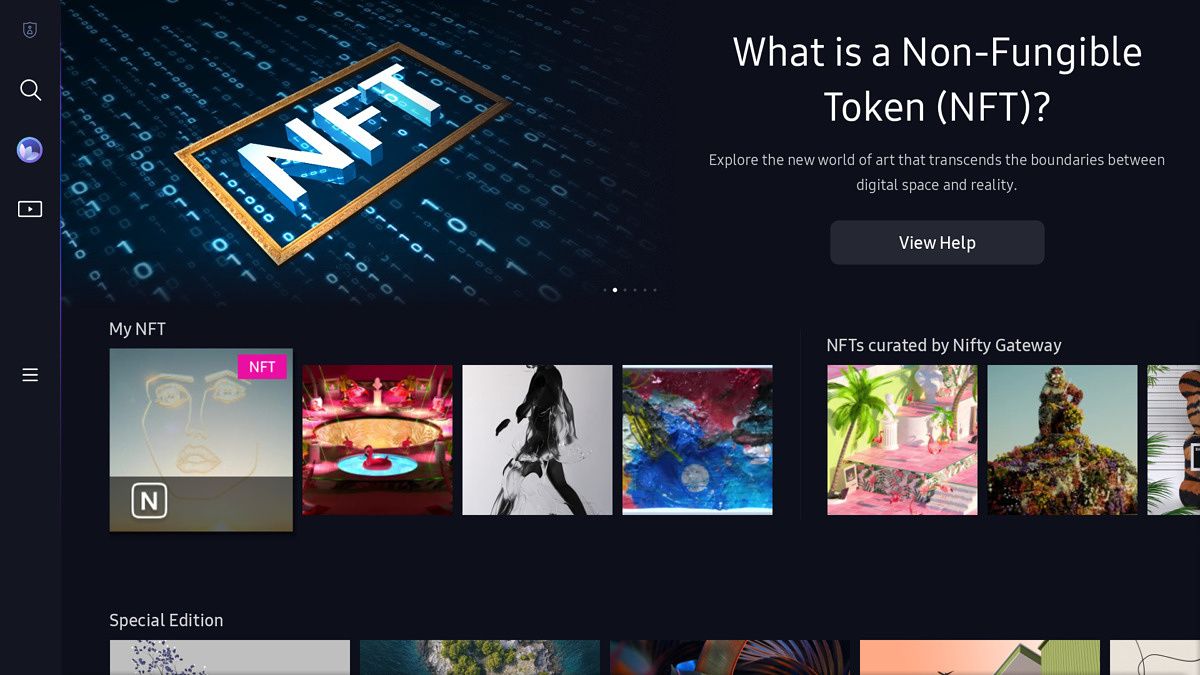
Samsung also has a new ‘NFT Aggregation Platform’ for its TVs, which is apparently “the world’s first TV screen-based NFT explorer and marketplace aggregator, a groundbreaking platform that lets you browse, purchase, and display your favorite art all in one place.”

Screenshot of Samsung's 'NFT Aggregation Platform'

I shouldn’t have to point out how absurd it is for a company to announce an eco-friendly remote at the same time as promoting a technology that is contributing to climate change, but apparently the irony has been lost. It seems the circus is back in town, because Samsung is acting like a clown.

Besides promoting one of the worst trends in technology in years, Samsung also announced ‘The Freestyle,’ which is essentially a small portable projector with Samsung’s smart TV software. It will support picture sizes from 30 inches to 100 inches across, but there’s no mention of brightness or pricing.

The post Samsung smart TVs now have eco-friendly remotes and not eco-friendly NFTs appeared first on xda-developers.


from xda-developers https://ift.tt/3JEb00X
via IFTTT

vendredi 31 décembre 2021

Want to ditch Google services? Apple’s ecosystem is almost the perfect replacement

Apple markets its products and services as privacy-focused ones. When you buy a device from the company and use the included software, you’re assured that your data isn’t getting sold to third parties. Google, on the other hand, makes most of its revenue from advertising. And what pays more than a regular advertisement is a targeted one, tailored based on your interests. It’s no secret that the search giant collects all sorts of data on its users. In a way, this is what makes it superior in some aspects — having richer, more accurate databases. However, plenty of users would rather not feed the machine learning algorithms. Ditching Google services in Apple’s ecosystem is doable. It comes with many frustrations, though, that differ based on where you live, your routines, the apps you use, and other factors.

Navigate this article:

Google Services VS Apple Equivalents

Search

Google Search

When it comes to search engines, Google dominates the field. None of its rivals have the same reach it has. People tend to say “Lemme google that” rather than “Lemme Bing it” for a valid reason — it’s the most popular search engine out there. In fact, even the verb google has been recognized and added to the dictionary.

When you search in Safari — whether on an iPhone or a Mac — the browser defaults to google.com. That’s because the company pays Apple billions of dollars every year to remain the default search engine. You can change the default one in the Settings app. However, most average users don’t know or care about that.

DuckDuckGo

Apple doesn’t have a search engine of its own. Users aiming at a de-Googled digital life have other privacy-focused options, though. DuckDuckGo is a decent replacement that doesn’t collect as much data on you. Additionally, the search engine allows you to turn off ads in search results for free. On Apple devices, it’s one of the five options you can have as a default engine. This way, you can type directly in Safari’s search field without needing to visit duckduckgo.com manually before every search.

When it comes to the accuracy of search results, Google’s are more relevant than DuckDuckGo’s — generally speaking. However, the latter is accurate enough for quick searches in day-to-day life. I sometimes find myself visiting google.com if I’m not satisfied with the results of the other one. However, that rarely happens. I would say ditching Google Search is one of the easier aspects of the Google-free digital life.

Authenticator

Material Design Authenticator

2-factor authentication (2FA) is an additional security layer people can add to some of their online accounts. If you’re unfamiliar with 2FA codes, they’re one-time digits you have to type after correctly entering your email/username and password. These digits are generated by apps — such as Google Authenticator — and they expire after (usually) 30 seconds.

How to use the new 2FA code generator on iOS 15

There are plenty of equivalents for Google Authenticator, like LastPass, for example. Additionally, if you’re on iOS 15 or macOS Monterey, then you can take advantage of the built-in 2FA code generator Apple has added. I don’t find myself missing Google’s app because Apple’s works just fine and supports auto-filling the codes when signing in to apps and websites.

Entertainment

YouTube logo on TV

The YouTube family is quite big and well-rooted. You’ve got the regular service, the music-oriented one, TV, Kids, Gaming, etc… Apple only offers Music and TV apps. There you can either subscribe to, rent, or buy your favorite albums, movies, and shows. If you use YouTube to follow certain channels that aren’t run by artists, then you’re stuck with at least one Google service.

Apple Music

Personally, I use YouTube less than once a week, and when I do, it’s usually to check a link sent by a friend. I’m not a video consumer in general. Even when it comes to music, I’m not interested in the music videos — I just want to listen to the audio tracks. As a result, Apple Music is enough for me. Most people probably can’t relate to this in the era of YouTube Shorts, TikTok, and Instagram Reels. However, I’m sure there are similar-minded people out there who don’t really care as much about video content.

Podcasts

Google Podcasts

Both Apple and Google offer podcast apps on iOS. However, if you use Google’s, then you’re stuck with the web version of it on the Mac, as there’s no macOS app for it. I have to admit, Apple Podcasts needs a serious update from the company. It’s usable, though, and you aren’t missing out on much by not depending on Google’s. I wouldn’t consider the Podcasts app one of the struggles when trying to achieve a de-Googled life.

Home
Google Home

When it comes to building a smart home, there are endless brands and products to choose from. Whatever it is that you’re looking for, you will likely find a HomeKit version of it. A significant portion of smart home appliances are platform agnostic anyway — as long as you find the HomeKit compatibility tag on it, you will be able to set it up through Apple’s Home app. When I’m browsing through smart appliances, I just search for ones that support HomeKit. This way I’m not forced to depend on Google Home. Additionally, Apple Home syncs to the Mac, too.

Health

Google Fit heart respiratory rate iPhone

Google offers its Fit app on iOS. The app requests access to HealthKit to import and sync your fitness-related data. Apple Health remains the core app for this purpose on iPhones. It’s worth noting, though, that Google Fit allows you to measure your heart rate on an iPhone without a smartwatch. So if you don’t want to buy a wearable and are interested in knowing your BPM, then Google Fit could be a tempting app to keep installed. The app is also capable of measuring your respiratory rate. I personally depend on my Apple Watch to keep track of my heart rate — Fit is useless to me.

Maps
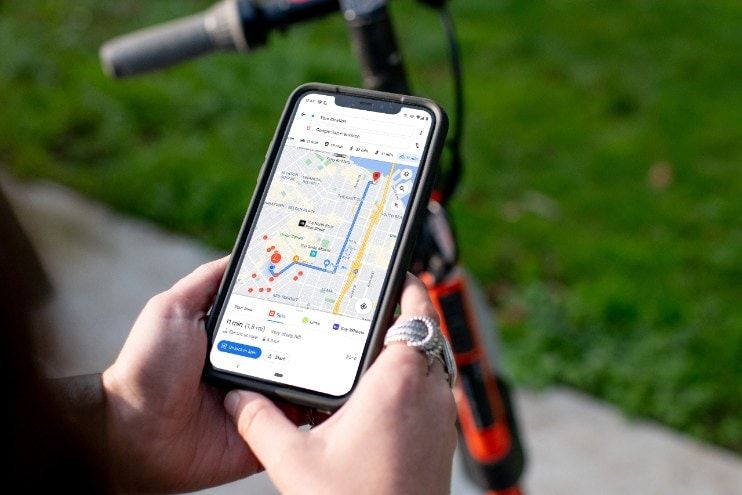
A phone showing directions in Google Maps

This is a service that Apple struggles to compete with, relatively speaking. Google Maps, especially in third world countries, is much more populated, detailed, and accurate than Apple’s. When I used to live in Lebanon, Apple Maps was pretty much useless. However, as a local, I didn’t depend on maps much. That’s because the country is tiny, I was generally familiar with the areas associated with my routines, and I didn’t do a lot of exploring on my own.

Last year I moved to Turkey, and that changed everything. For starters, Istanbul is gigantic — coming from a city as small as Beirut. Secondly, I don’t speak Turkish, so I have to completely depend on maps to find my way around. While Apple Maps in Turkey is not as much of a ghost town as it is in Lebanon, it still isn’t complete. Additionally, it doesn’t support saving maps for offline navigation. I do have mobile data at all times, but I still like keeping an offline map available as a just in case thing.

Another advantage of using Google’s is navigation through public transport. The app displays the exact schedules, numbers, and stations of busses/metros you have to go through. Apple’s neither supports this nor street view in the region. That’s how I ended up a prisoner to Google Maps. But hey — Apple Maps has a macOS app.

Detialed map of london apple maps macos

I understand that Apple’s is more populated in first world countries, especially the US. So if you live there, you will likely have no trouble completely depending on it and ditching Google’s. I’ve tried so many times to uninstall Google Maps here, but it always finds its way back to my iPhone. So that’s one service stopping me for the time being from achieving the de-Googled life again.

Translate

Apple translate on iPad

That’s the other Google service I can’t get rid of. Apple introduced its Translate app on iOS 14 — which was followed by the release of the iPad app on iPadOS 15. However, macOS still lacks an Apple Translate app. Additionally, the company only supports around a dozen languages, while Google supports over a hundred. You’d think the few languages the Cupertino giant supports have been perfected — but no. As an Arabic/English bilingual, I’ve tested this language pair on both services. Google’s Arabic translations are notably more human. While Apple’s might be grammatically and semantically correct (most of the time), they don’t sound as natural.

This makes complete sense, considering Apple has just entered this domain. Google Translate has been around for many years, which enables the company to provide more accurate translations through a richer database. It additionally can translate more advanced and complex walls of text without losing context. Both services support offline translations, but Google’s execution is more efficient and data-friendly. None of the languages I’ve downloaded on Google Translate exceed 100mb. On the contrary, downloading a single language on Apple Translate heated up my iPhone and consumed several hundred megabytes of storage.

As someone who only needs a translation app for the Turkish/English language pair, Apple’s isn’t an option. That’s because Turkish isn’t one of the few available languages. And most of the locals here don’t speak English, so I can’t depend on that as a lingua franca. What frustrates me, though, is that the Apple Translate app and system-wide translations (such as in Safari and Messages) are neatly built. It’s just that Apple doesn’t have Google’s database. It’s like riding a fancy, shiny car with a broken engine. So if you live in your homeland or in a country that you speak the language of, this is a Google service you can likely ditch.

Communication

Google Meet and Google Chat logos in a Chromebook line drawing

I won’t list Google’s communication services because honestly I’m no longer counting or keeping track — for obvious reasons. However, I’m unaware of any region that solely depends on an app by Google for instant messaging (IM) and VoIP calls. Generally speaking, people depend on a handful of IM apps, based on where they and their loved ones live. You’ve got iMessage, Telegram, WhatsApp, Signal, Facebook/Instagram DMs, and even SMS in some places. So even if some of your contacts use an app by Google to communicate, you will likely find them on a different IM app. So communication has never been a de-Googling obstacle — to me at least.

Mail
New Gmail logo on white background Google

If you’ve already created your online accounts using your Gmail, then de-Googling will sound like a nightmare. However, it’s not as complicated as you’d picture it from afar. Once upon a time, I was an Android user, and all of my online accounts were based on my Gmail. After making the move to iCloud Mail, I just changed my active accounts’ email to the iCloud one.

Most online services allow you to change your email address, so that shouldn’t be an issue. And to make sure I don’t potentially miss any emails from old contacts I’ve forgotten about — since I no longer check my Gmail — I’ve set a forwarding rule that automatically sends them from my Gmail to my iCloud inbox. Seriously, it’s simpler than it sounds.

Productivity

Both Apple and Google offer Notes, Reminders, and Calendar apps. While they’re not identical, both sets support the main features you’d expect the respective apps to have. Additionally, by using Apple’s, you get instant background sync through iCloud. So the content remains up to date on all of your iDevices. The same applies to the Photos apps. There will always be exclusive perks on either side, but they’re usually not deal-breakers to most average users.

iwork updated macos icons

If you want to type a document on your Mac, you have to use Google Docs on the web. Apple’s iWork suite allows you to work on documents, sheets, and presentations on macOS through dedicated, native apps. So by using Apple’s productivity tools, you don’t have to depend on web apps.

News

Apple News+ on macOS

Apple News is only available in a handful of countries. If you live in a region where it’s not supported, then you will either have to use apps like Flipboard or depend on Google News. Personally, my devices and Apple ID are US-based, so I can use Apple’s service just fine. If Apple News isn’t available for you, though, there are plenty of other non-Google apps for your daily dose of international drama. I wouldn’t consider News a solid barrier stopping users from de-Googling.

Drive

iCloud description from Apple.com

If you’re in Apple’s ecosystem, then using iCloud Drive makes more sense — as it syncs all of your data instantly and doesn’t consume as much battery. Google Drive, though, offers 15GB of free storage, compared to Apple’s 5GB. So if you’d rather not pay a monthly iCloud Plus subscription fee to expand it, this could be a dealbreaker for you. Personally, my data consumes less than 5GB, and I use the Apple One Premier bundle anyway — so that’s not forcing me to use Google Drive.

Personal Thoughts

Completely de-Googling is doable in some regions under certain circumstances. I was able to do it once, back when I was living in Lebanon. I had no Google apps on my devices and didn’t have the need to visit any of their respective websites. However, when I moved to a foreign land, I found myself desperately needing some of these services to adapt to life here.

If I eventually relocate to an English-speaking, first world country, I most definitely see myself deleting them again. This is because Maps and Translate are the only two apps I can’t not depend on. So if Apple Maps is (properly) available and I speak the language of the locals, then there’s nothing stopping me from achieving this yet again.
Apple and Google logo

Additionally, I prefer Apple apps on the company’s operating systems because they tend to have better UI/UX and implement the latest APIs introduced to the OSs on day one. That’s not to mention the better system integrations and privileges that aren’t available to third-party developers.

A Google-free life sounds impossible, considering the company dominates many aspects of our lives. But if you actually take it one service at a time and put in the effort to convert to equivalents, you might realize that it’s not as far from reality as it appears from afar. There will always be more privacy-focused equivalents. They might not be as accurate or functional in certain cases, but they’re valid options. Ultimately, it all comes down to your priorities and needs.

Do you see yourself living a completely de-Googled life? Why or why not? Let us know in the comments section below.

The post Want to ditch Google services? Apple’s ecosystem is almost the perfect replacement appeared first on xda-developers.


from xda-developers https://ift.tt/3pDXEdb
via IFTTT

Descendant 12 based on Android 12 is here for the POCO F3, POCO X3, and more

The Descendant custom ROM is quite popular in the aftermarket development community, providing an alternative experience to users who want to retain the ability to customize their device and still stick closer to the stock Android look and feel. Over the years, Descendant has managed to create its own loyal fanbase who like the ROM and its unique features for good reason. Now, the Descendant team has announced the first official builds of Descendant 12 based on Android 12.

As the flood of Android 12 custom ROMs continues to flow through, more and more devices are seeing the fruits of Google’s latest and greatest version of Android. In this regard, the Descendant project is undoubtedly a little late to the Android 12 party. But if you are a fan of the ROM and were waiting for the public release, you should be delighted to know that Descendant 12 comes with plenty of visual treats. The official builds feature a brand new boot animation, a redesigned volume UI, and a highly customizable dynamic theming system based on kdrag0n’s implementation.


Download Descendant 12

Although not every Descendant-exclusive feature has been rebased yet, the team is satisfied with the current state of the ROM and hence, has made the new releases officially available to the public. You can try it out on your phone — assuming your device is on the initial roster. In the first wave, the flashable builds of Descendant 12 are live for the Lenovo Z5s and a bunch of Xiaomi smartphones. Notably, these builds already have Google apps included, so you don’t need to flash a separate ZIP file to get the Google Play Store. The GSI targets are absent for now, but they will be available soon.

Here’s the complete list of devices that have received the official build of Descendant 12:

Download Descendant 12 based on Android 12 for your phone

More devices are slated to receive an official build of Descendant 12 in the coming days. If you’re interested in helping the Descendant team with development, then take a look at the project’s GitHub repo.

Have you tried out Descendant 12? Let us know your experience with this new release in the comments below!

The post Descendant 12 based on Android 12 is here for the POCO F3, POCO X3, and more appeared first on xda-developers.


from xda-developers https://ift.tt/31ehK4t
via IFTTT
jeudi 30 décembre 2021

Samsung Galaxy S22 Ultra render confirms yet again that it’s basically a Galaxy Note

We’re getting pretty close to the official unveiling of the Galaxy S22 series. The phones will probably arrive in February, but the first renders of the Galaxy S22 Ultra and even live images have already shown up online. We also caught a glimpse of some press render showcases of the S22 Plus and the S22 Ultra. Now we’re getting our first look at an official product render of the Samsung Galaxy S22 Ultra, and it seems to yet again confirm what we already knew — it’s the spiritual successor to the Galaxy Note series.

Samsung Galaxy S22 Ultra render

This render, shared by Evan Blass of @evleaks, seems to confirm a lot of what we already knew. There was some initial confusion when it came to OnLeaks’ initial renders over how the camera would be arranged, though that was later cleared up and this confirms that each lens is separate on the back. We can also see the inclusion of an S-Pen, and it seems that it will dock inside of the phone this time around, unlike with the Samsung Galaxy S21 Ultra. In that regard, this definitely seems to be a true successor to the Galaxy Note 20 Ultra, as it would be indistinguishable from an actual Note series device.

The display looks similar to that on the Note 20 Ultra with curved edges on the sides, it has a boxy design just like on the Note series and the camera module is also expected to get a revamp. Additionally, we’re expecting that the S22 Ultra to have a display that’s similar to the one on the S21 Ultra: a 120Hz LTPO AMOLED panel with a QHD+ resolution.

We expect that the Samsung Galaxy S22 Ultra in the U.S. will get the Qualcomm Snapdragon 8 Gen 1, though other markets across the world including the U.K., EU, and India would typically be expected to get the Exynos 2200 SoC. Some reports still point towards India getting the Snapdragon chip instead of the Exynos one, though. The Exynos 2200 chip might bring some much-needed improvements in the GPU department, and the company is already teasing those improvements on social media.

All speculation aside, we don’t have much longer to wait. The Samsung Galaxy S21 FE will be launching at the start of January, and then it’s full speed ahead for the Galaxy S22 series.

The post Samsung Galaxy S22 Ultra render confirms yet again that it’s basically a Galaxy Note appeared first on xda-developers.


from xda-developers https://ift.tt/32ACDY4
via IFTTT

Samsung will reveal Exynos chip with AMD graphics in January

Samsung started working closely with AMD back in 2019, with the goal of improving the graphics capabilities of Samsung’s Exynos System-on-a-Chip (SoC) designs. Samsung confirmed at the time that the improved GPU capabilites would arrive roughly within two years, and a new tweet from the company confirms it might be ready for the launch of the Samsung Galaxy S22.

Samsung published a tweet on Thursday teasing “the next Exynos with the new GPU born from RDNA 2,” with a reveal date of January 11, 2022.

RDNA is the codename for AMD’s current Radeon graphics architecture, which first arrived on the Radeon RX 5000 series of desktop graphics cards. RDNA 2 is used in the PlayStation 5 and Xbox Series X and Series S consoles, as well as AMD’s Radeon RX 6000 graphics cards. Integrating the technology into a mobile chip could provide significant improvements over the usual Adreno graphics found in most ARM chips (which is also based on AMD technology).

Previous leaks and rumors point to the Galaxy S22 using an Exynos 2200 chipset, at least outside of North America (where Samsung’s phones usually have Snapdragon chips). The company also announced back in October that a future Exynos chip would support ray tracing graphics. There are also rumors that Samsung might sell Galaxy S22 phones with Snapdragon chips in regions that previously only had Exynos models available, such as India.

It remains to be seen if the new Exynos will compete with Apple’s mobile chipsets, which have maintained a significant lead over anything available from Samsung, Qualcomm, and MediaTek for years. Android is still the preferred gaming platform for many, thanks to the abundance of hardware options and more open software platform, but more often than not, Apple has still claimed victory in gaming performance.

The post Samsung will reveal Exynos chip with AMD graphics in January appeared first on xda-developers.


from xda-developers https://ift.tt/3pDxLdE
via IFTTT

Nokia G50 is the latest HMD Global phone to get Android 12

The Nokia G50 is a direct successor to the Nokia G20 that launched earlier this year alongside the Nokia G10, packing the budget-oriented Qualcomm Snapdragon 480 chipset. It has a 6.82-inch LCD panel, 4GB of RAM, and launched with Android 11 in September. HMD Global promised that the phone would receive two major upgrades with three years of security patches. Since then, we’ve seen both the Nokia X20 and the Nokia X10 receive their first major updates to Android 12. Now, it’s the Nokia G50’s turn, as it’s getting Android 12 as well.

HMD Global has not officially announced the update yet, and so there’s no changelog. However, it comes with the November 2021 security patches and carries version number V2.160. Android 12 brings a lot of changes to the table, including a whole new user interface. Non-Pixel devices won’t get Material You just yet, but the rest of the changes are there including larger quick toggles and more rounded UI elements.

As usual, we expect that Nokia is pushing out these OTAs in a phased manner. Typically, a smaller subset of users will receive the update, and then the number of users receiving it will grow until everyone has it. Because there is no official announcement yet, we don’t know where and when the update is supposed to be rolling out, but we can imagine that the company will split it up into multiple waves as it has done with the Nokia X10. Device owners should check their phone for updates to see if they have it available for download.

The Nokia G50 is available in the U.S. and Europe for $300/ €270. It can be purchased from Nokia.com.

The post Nokia G50 is the latest HMD Global phone to get Android 12 appeared first on xda-developers.


from xda-developers https://ift.tt/3qzSGxm
via IFTTT

Google pauses December 2021 update for Pixel 6 and Pixel 6 Pro

Google released the December 2021 security patch for Android back on December 6th, but the update for Pixel phones was a bit more substantial, adding a handful of new features for most Pixel phones. The update was delayed for the Pixel 6, but now it appears the rollout has been completely halted.

Google didn’t officially start rolling out the December 2021 update to the Pixel 6 and Pixel 6 Pro until December 13, but many owners of the phones were still left waiting for the upgrade (and some resorted to manually flashing it). Google has now confirmed it paused the rollout, following reports of calls dropping and disconnecting after installing the upgrade.

A Google representative wrote on the Pixel Help forums, “The Pixel team paused the December software update to Pixel 6 and Pixel 6 Pro devices after some users reported calls were dropping or disconnecting. We have now identified a fix that will roll out in a software update by late January. This update will also include all the fixes and improvements that were originally planned in December.”

That means most Pixel 6 owners, minus the people who already received the buggy update, will be stuck on the November 2021 security patch level until sometime in late January. That’s not great news, but preventing people from placing calls on their phones probably isn’t a preferable alternative. Google’s only advice for anyone experiencing problems is to perform a factory reset while reverting to the November 2021 system image.

Many Pixel 6 owners took to social media to complain about the original rollout. “Still no network connectivity on the pixel 6 following the December update and no word from google,” one person wrote, while another said, “no signal, no WiFi, no Bluetooth & battery dead in half a day all this for 19 days.” XDA Developers‘ own Jeff Springer was experiencing signal issues and decreased battery life, and other reports mentioned the official Pixel Stand charger no longer working.

The OTA files and factory images for the December 2021 update are still available from Google’s website, if you want to take your chances a (potentially) buggy update.

The post Google pauses December 2021 update for Pixel 6 and Pixel 6 Pro appeared first on xda-developers.


from xda-developers https://ift.tt/3mJf4U0
via IFTTT

Here’s how to fix Google Pixel 6’s annoying screen freezing issue

The Pixel 6 and Pixel 6 Pro are some of the best flagships available on the market right now. From powerful cameras and in-house Tensor chipset to thoughtful software experience, Google’s latest flagships phones have everything you would want from a modern-day flagship. While the Pixel 6 series has received positive reviews from critics, it seems end-users aren’t having a stellar experience with Google’s newest phones so far. The new phones have been subject to numerous bugs and issues as of late, with users complaining about the slower fingerprint scanner, ghost dialing, connectivity issues, and more. Lately, many Pixel 6 owners have noticed an annoying issue where the device completely freezes up for a few seconds.

Google Pixel 6 Pro Review: Fantastic everyday phone with an undeniable Exynos inspiration

The freezing touch-input issue seems to trigger on Pixel 6/Pro units that have an Accessibility Service running with canPerformGesture permission enabled. When this permission is enabled, the whole system freezes for 1-2 seconds every time the battery drops by 1%. If you own a Pixel 6 or Pixel 6 Pro and are affected by this bug, there’s a temporary workaround to resolve the issue. It requires disabling all Accessibility features. To do so, go to Settings > Accessbitliy on your Pixel 6 and turn off every accessibility service you find in there, including Voice Access, Accessibility Menu, Switch Access, and others.

    Google Pixel 6
    The Pixel 6 comes with Google's new Tensor SoC, a fresh design, and powerful flagship cameras.

Google says it’s currently investigating the issue and has assigned the bug to the relevant product and engineering team. The company hasn’t provided any timeline as to when we can expect the software fix to be ready. We’ll keep an eye out and let you know as soon as we learn more details about the screen freezing bug.

Have you noticed the screen freezing issue on your Pixel 6 or Pixel 6 Pro? Let us know in the comments below.


Thanks XDA Senior Member micku7zu for the tip!

The post Here’s how to fix Google Pixel 6’s annoying screen freezing issue appeared first on xda-developers.


from xda-developers https://ift.tt/3z8qgOY
via IFTTT